Low power anomaly detection of a Device Under Test (DUT)
Low power anomaly detection
While a single test cycle of power consumption may appear normal, real-world issues such as network errors, retries or unexpected wake events often only appear after several hours or days of operation. By running the power test continuously and discarding cycles that match the expected behaviour, only power events that deviate from the norm are captured and stored. This application note explains how to do this with either an Ace or an Arc instrument and the Otii Automation toolbox.
This approach keeps the data manageable while ensuring that rare or intermittent anomalies are never overlooked. The result is an effective method of identifying hidden issues that short-term testing simply cannot reveal.
Products needed
How to connect
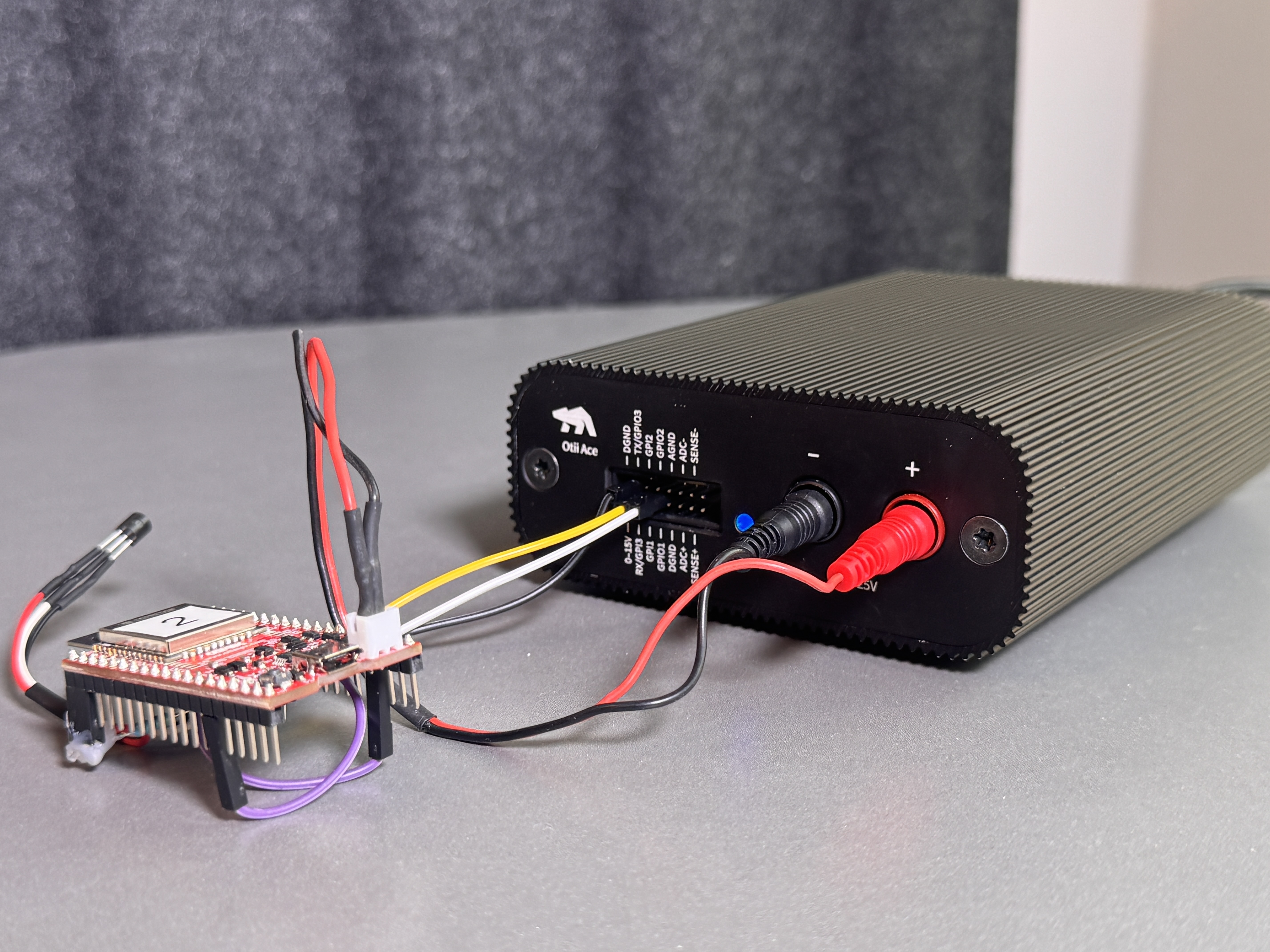
- Connect Arc/Ace to your computer by USB. If needed add a power supply.
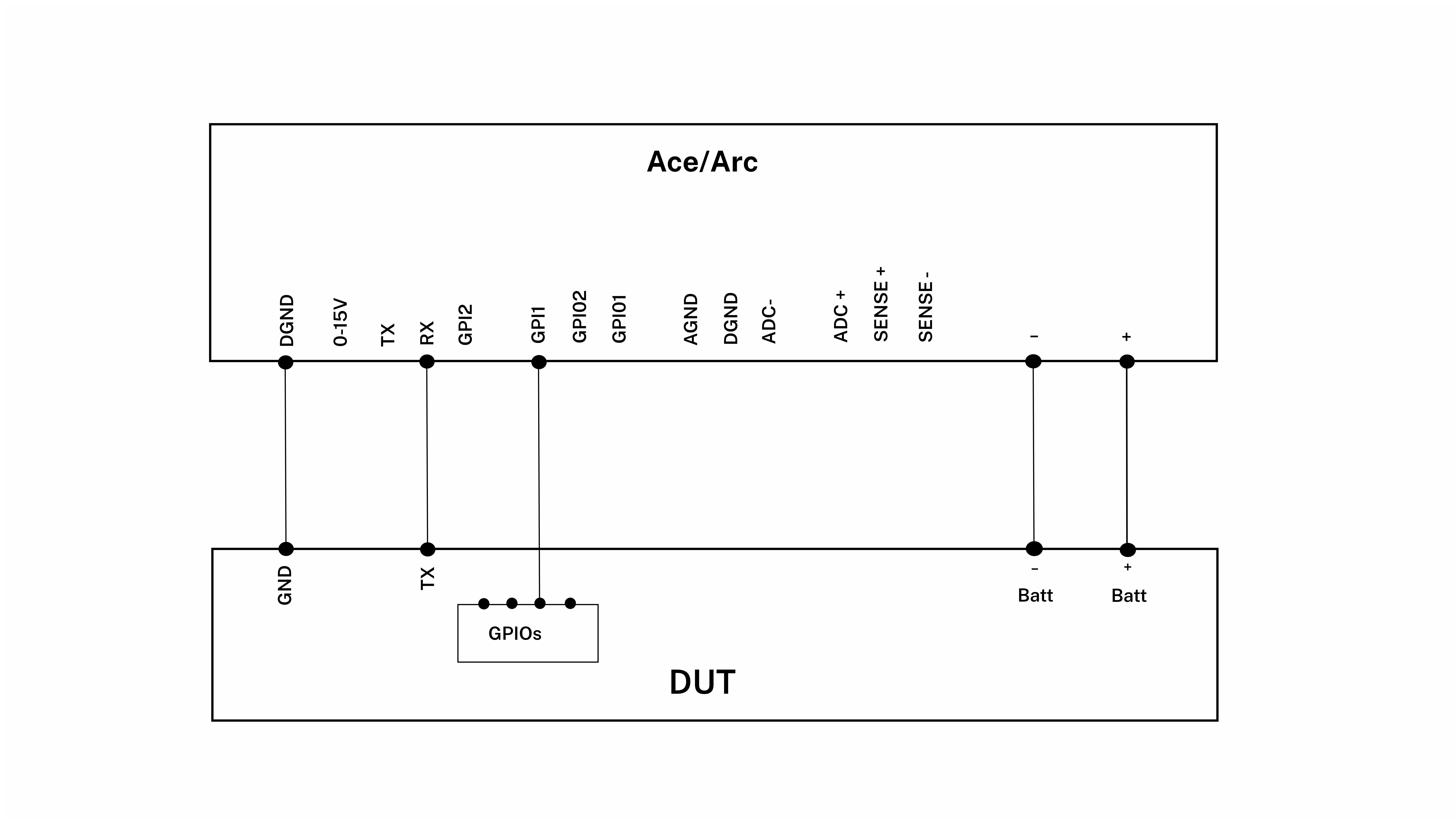
- Connect Arc/Ace’s banana connector + to DUT positive battery connector/power connector.
- Connect Arc/Ace’s banana connector – to DUT negative battery connector/power connector GND.
- For Ace, connect Ground GND from your DUT to Ace’s DGND. This is only necessary for Otii Ace since expansion port and banana connector are isolated.
- Optional, connect UART TX from your DUT to RX on Arc/Ace.
- Optional, connect GPI1 to digital outputs on the DUT.
Get started in the Otii application
- You must have the Otii TCP server running to be able to automate the measurement, this can be done either by having the Otii desktop app up and running or by starting otii_server.
- You must have an Otii Automation Toolbox license reserved, either do this via Otii desktop app, User Management (Ctrl-U/⌘-U) or alternatively, you can also do this automatically in the script.
- Follow the instructions regarding how to install the python client in the documentation.
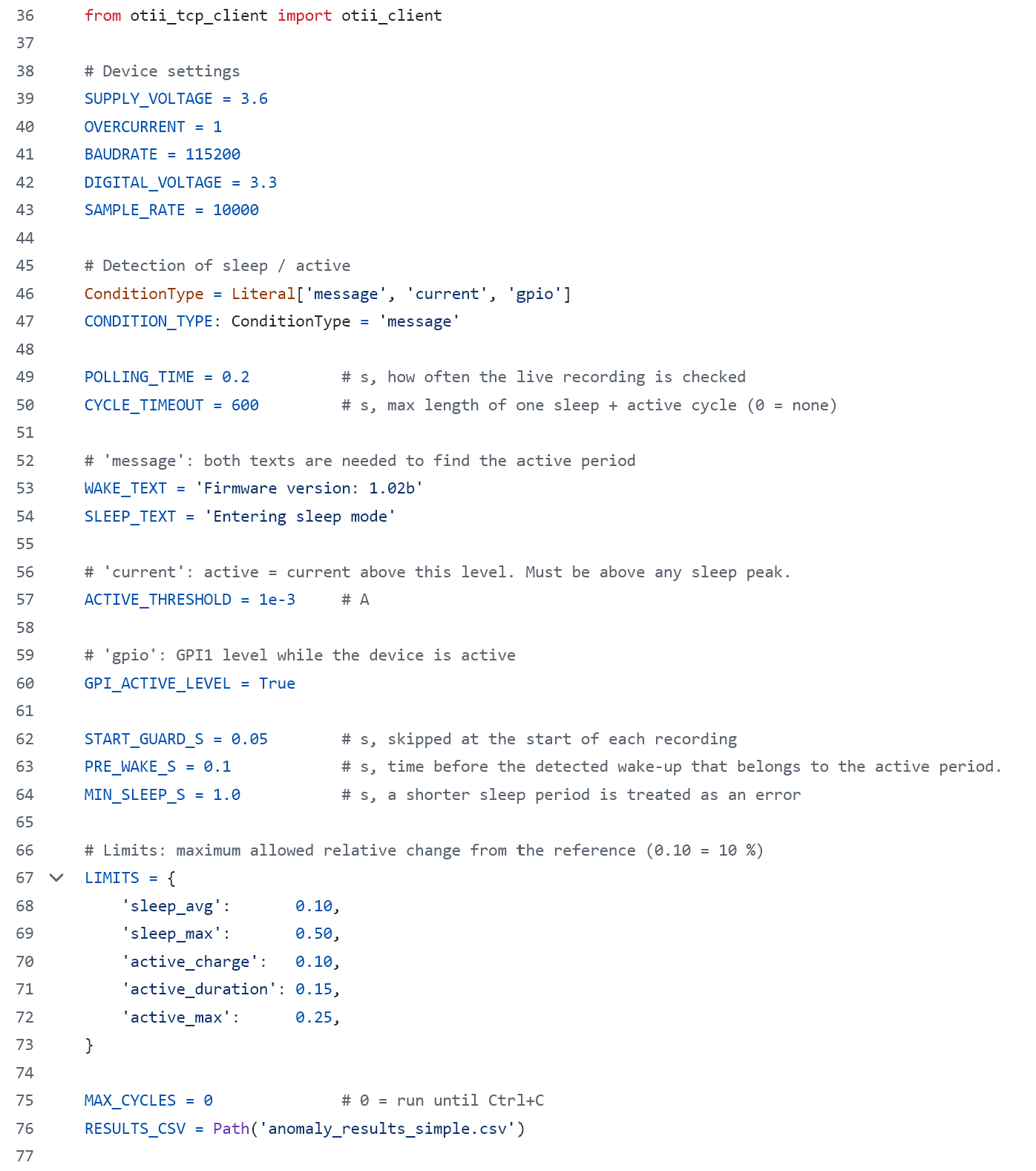
- Edit the example script anomaly_detection.py that can be found at Qoitech Github.
- Edit the Arc/Ace settings
- Select if you want to detect the DUT going to active and sleep via UART messages, GPIO activity or a current threshold
- Edit the levels for how much a sleep period and active period is allowed to deviate from the reference recording
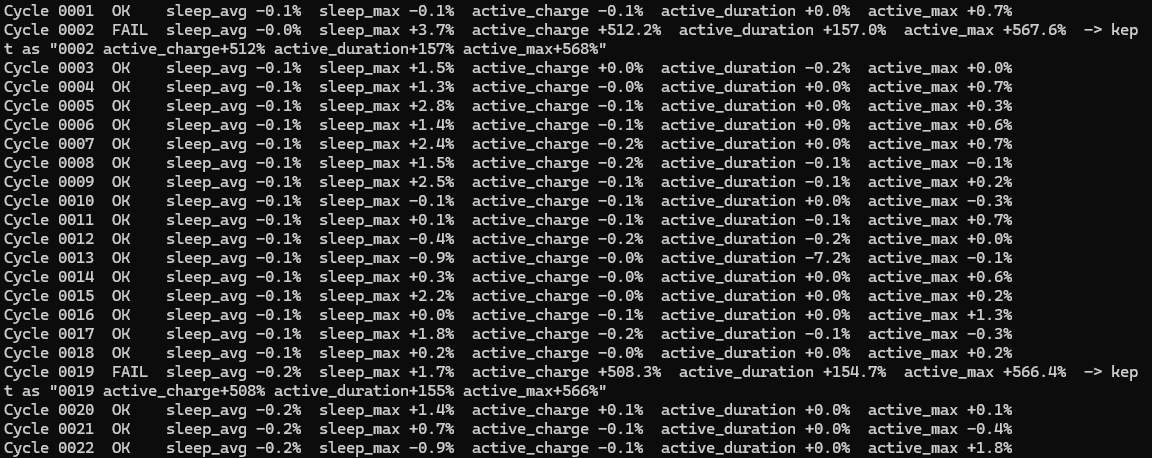
- Open a terminal window and run the script.
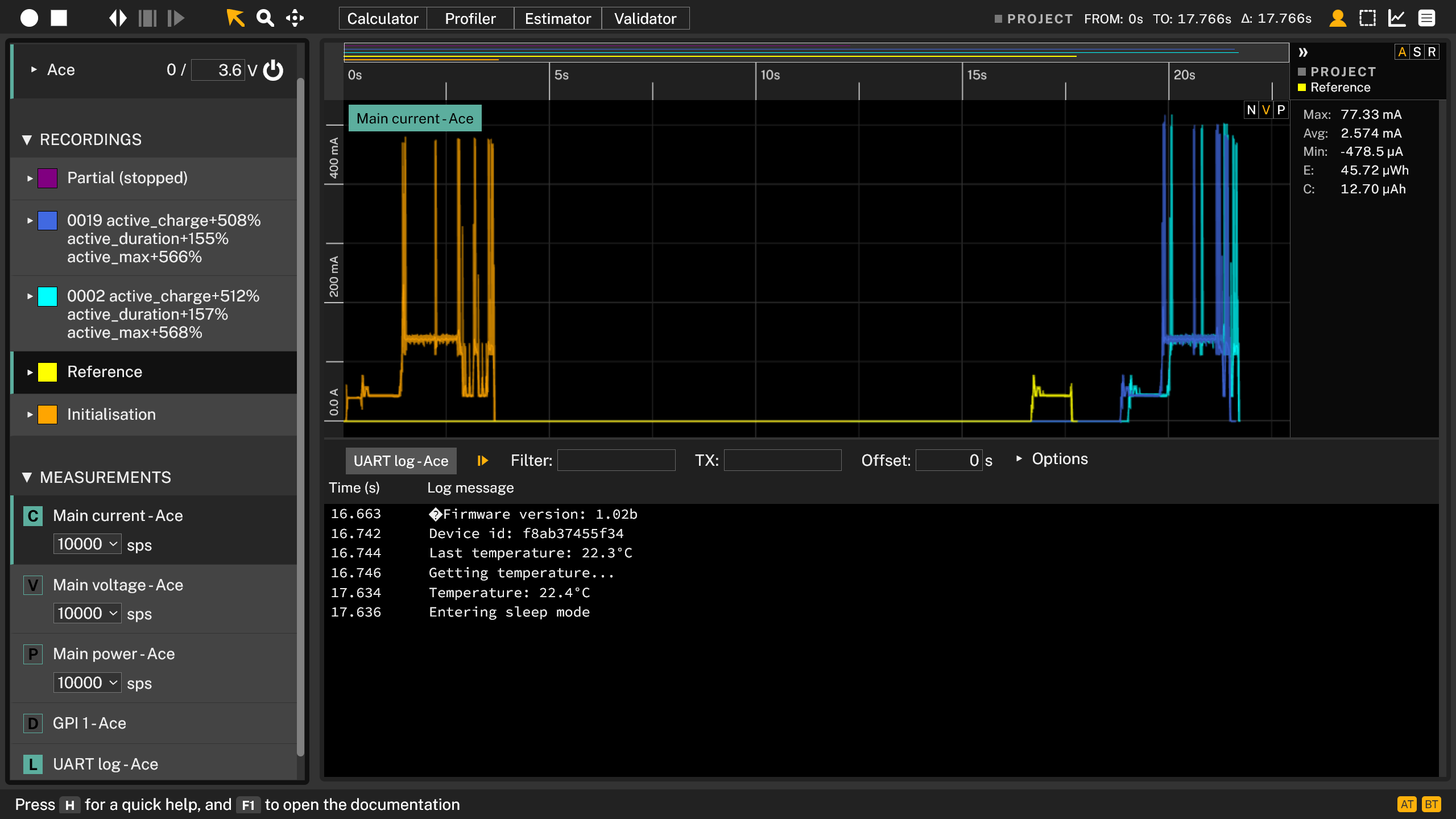
- When wanted number of iterations are finished, or Ctrl-C is used, the script generates a .csv file with data from both good and bad iterations.