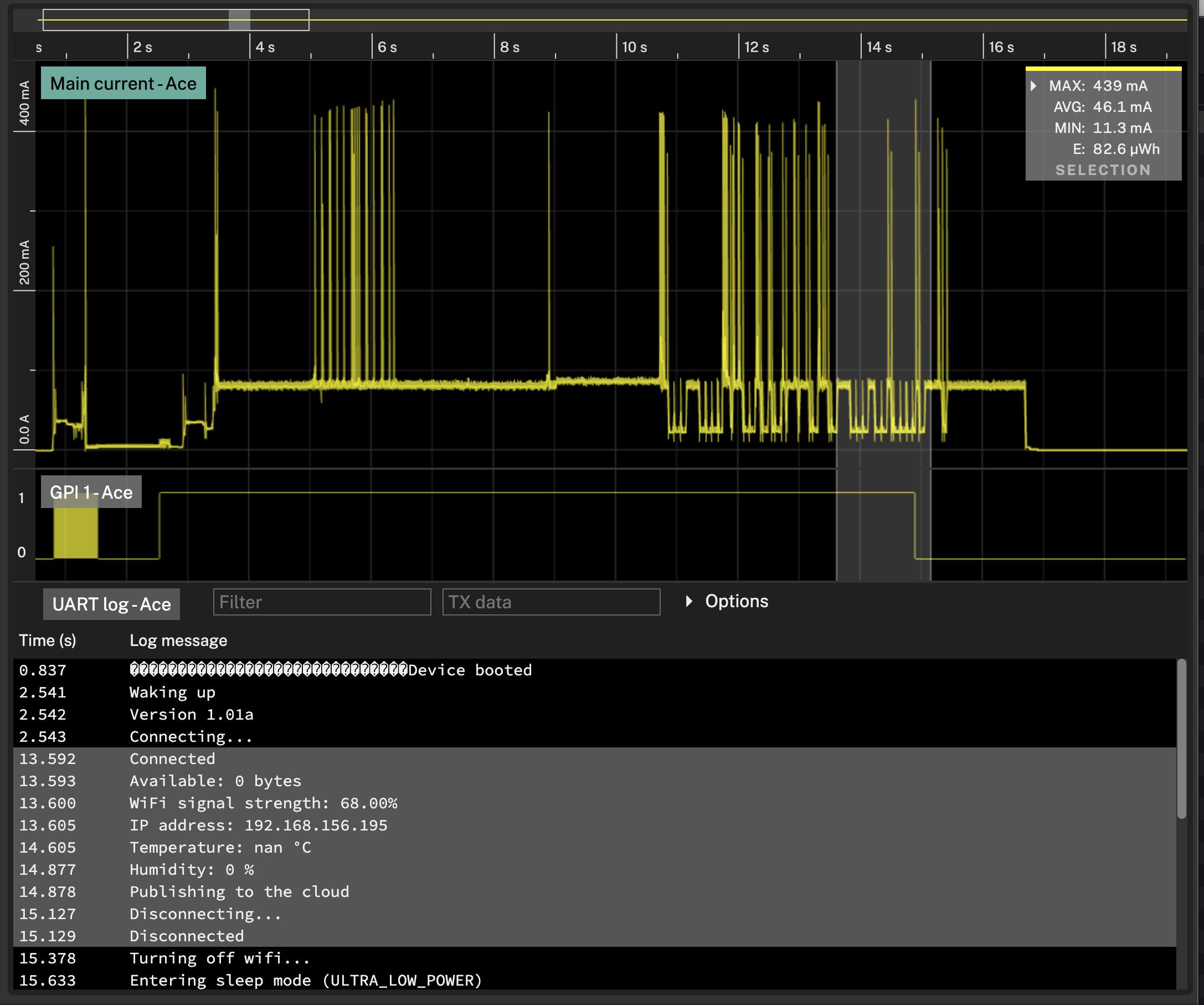
Analysis
Statistics
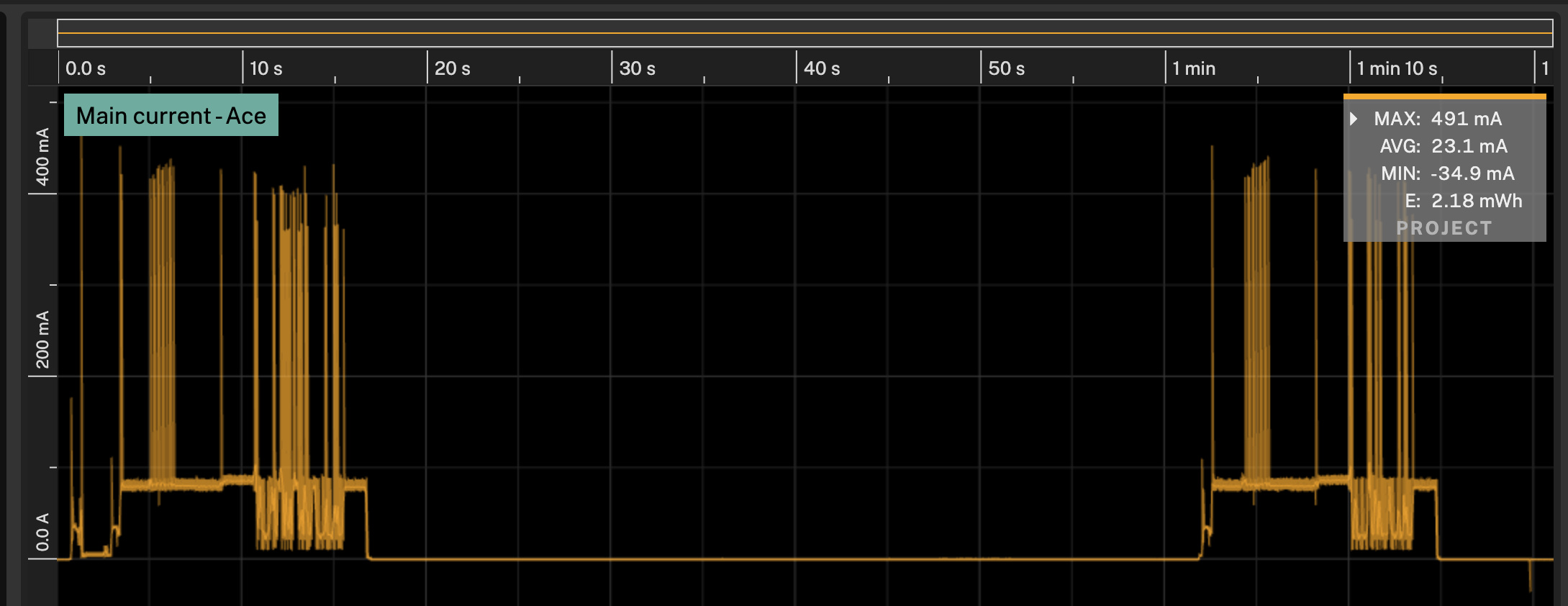
Statistics for the current recording
By default, with no selections the statistics view shows the statistics for all data in the project.
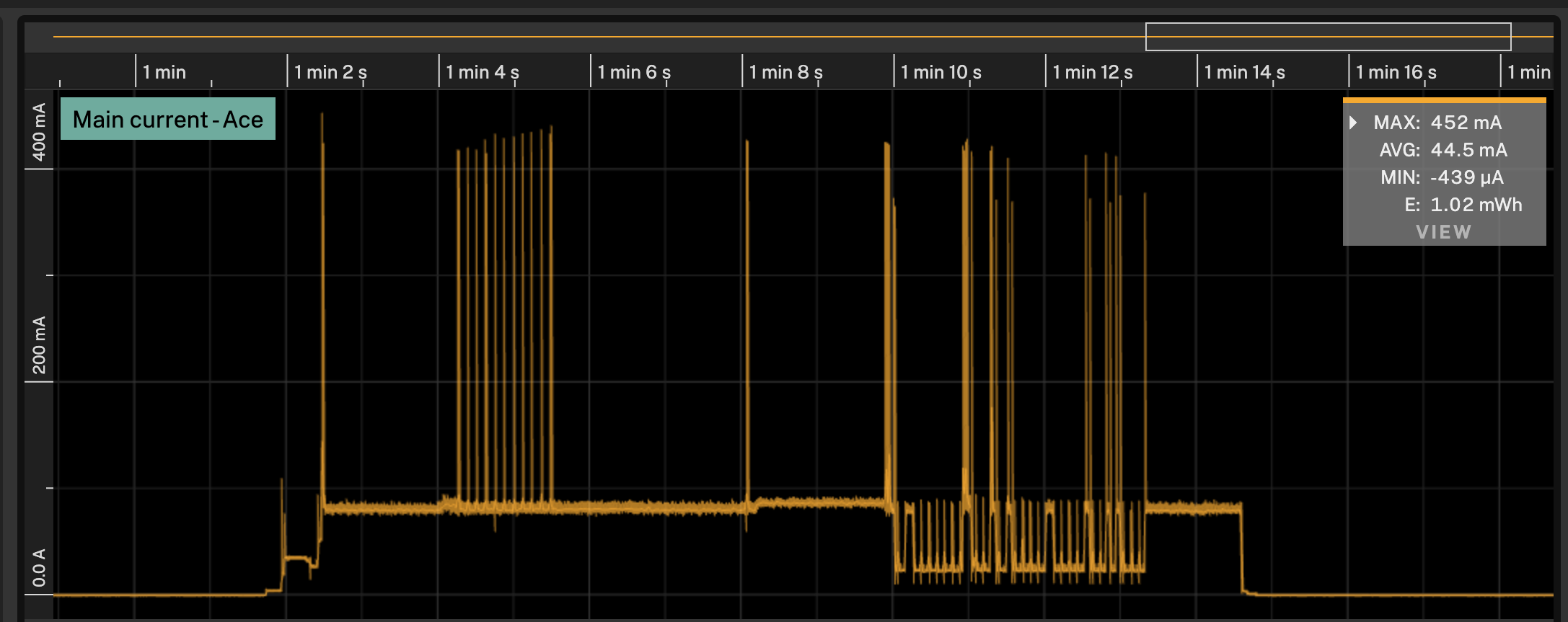
You can change it to be the statistics for the visisble data, by changing Show defaullt setting
in the settings to View.
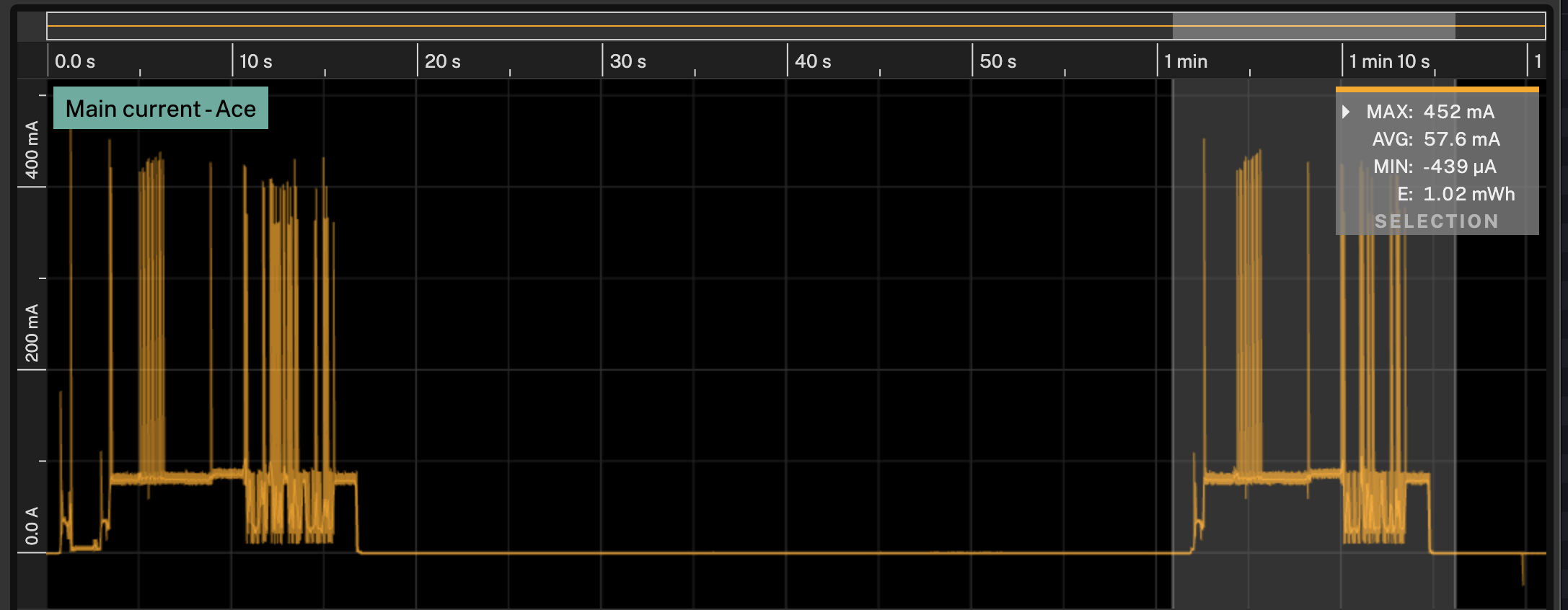
When select a range of data, the statistics view will show the statistics for the selected range.
Saved selections
You can save your selection by pressing the +-button in the upper right corner of
main selection, or by right-clicking the selection and choose Save selection.
You remove the selection by clicking the x-button in the upper right corner of the selection,
or by right-clicking the selection and choose Clear selection.
You can have as many saved selections as you want.
Name and color
By right clicking a saved selection you can change the name and color by choosing
Rename selection... or Change selection color....
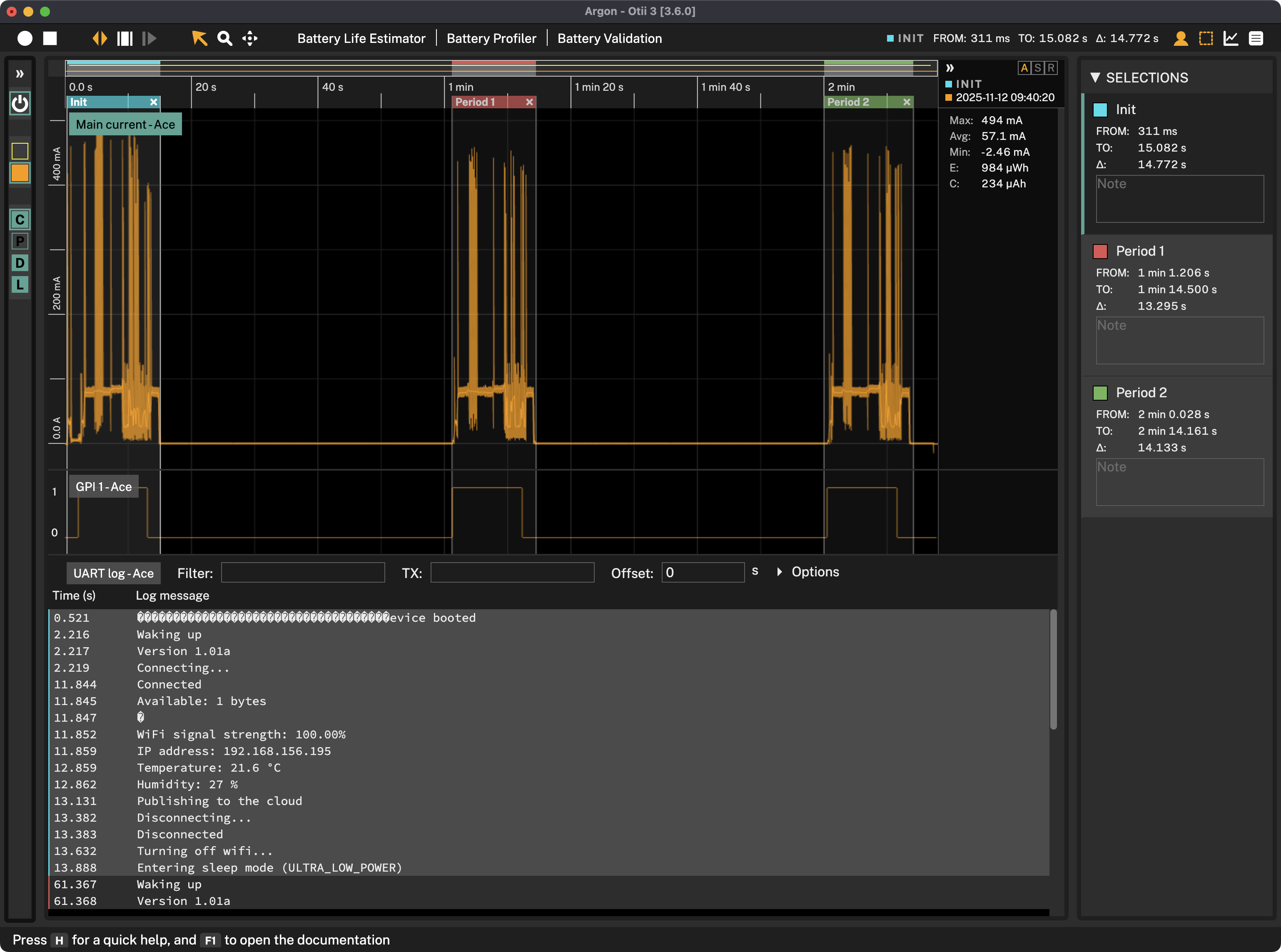
Selection list
To see a list of all selections, click the selection icon in the upper right corener of the app.
Here you can rename, change color, and add an additional note to the selection.
By clicking on a selection you make it active.
Statistics for multiple selections
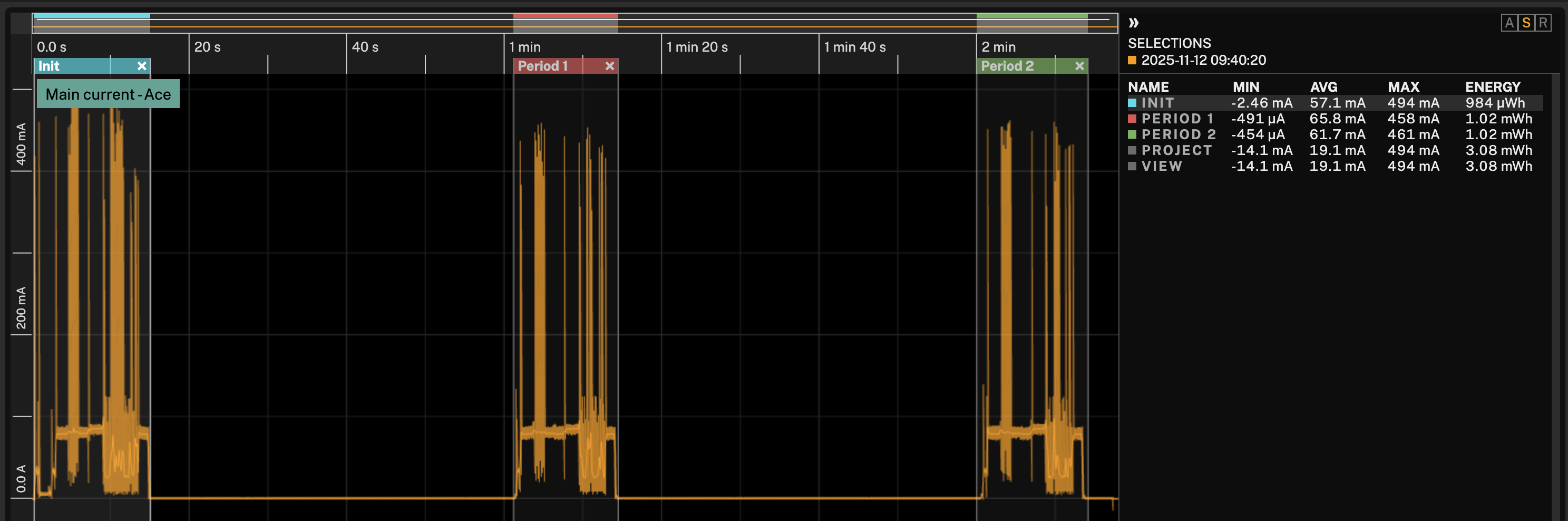
If you choose S in the top of the statistics view, you can compare statistics for all your
selections in addition to the statistics for the entire project and the visible view for
the active recording.
You can change the active recording by clicking on the recording name in the header.
Statistics for multiple recordings
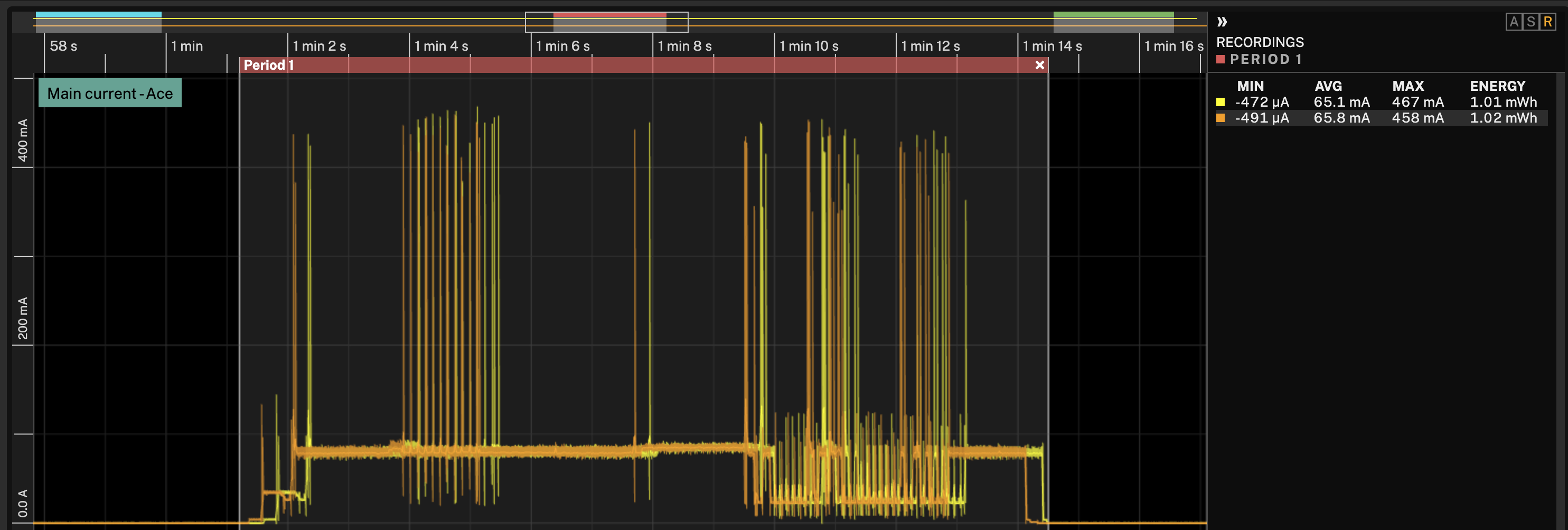
If you choose R in the top of the statistics view, you can compare statistics for all your
recordings for the active selection.
You can change the active selection by clicking on the selection name in the header.
Configuring statistics
The settings views can be configured in the settings.
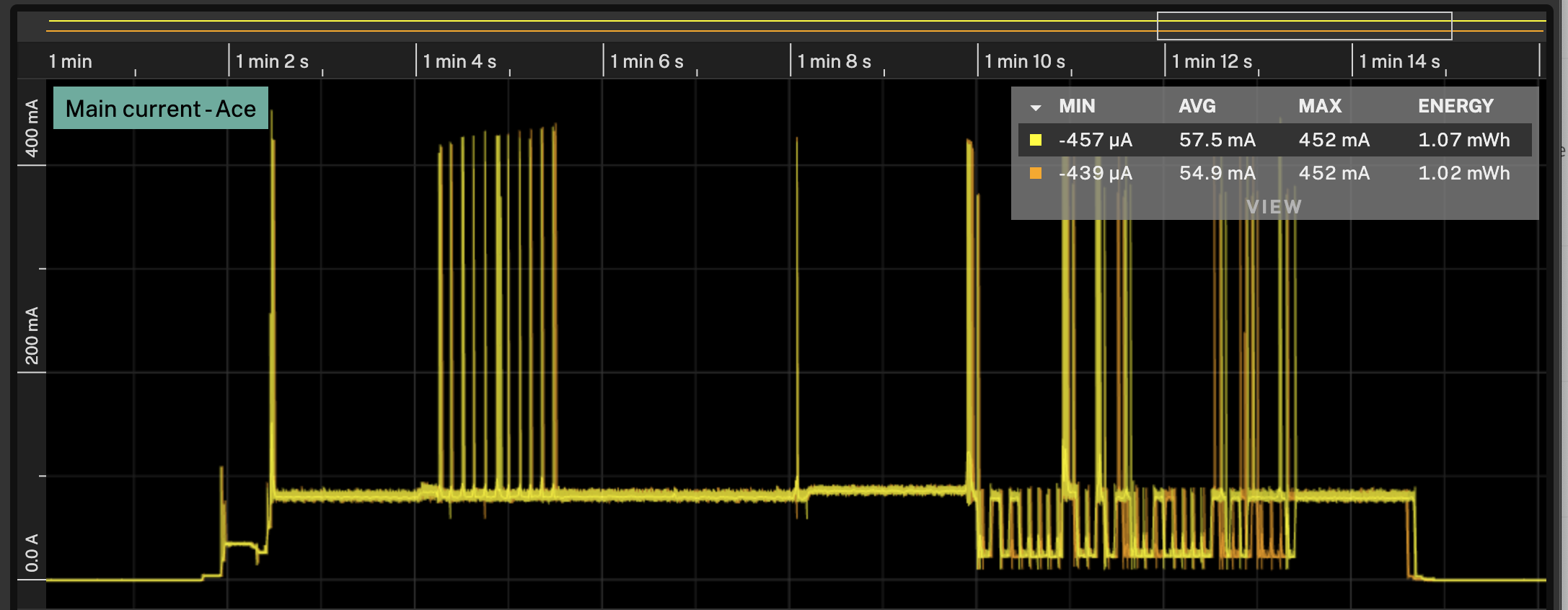
Aligning recordings
If you want to compare two recordings you can align them by:
- Select the recording you want to offset
- Select the drag tool in the toolbar
- Hold
⌥while dragging the graph with the mouse - You can also offset the graph with the keyboard with
⌥-Leftor⌥-Right
Sync with log
If you want to analyze a section between two events, you can make a selection in the log, and the corresponding time in the graph will be selected as well.