
Settings
Otii 3 Desktop App can be easily customized and parameterized to either look or operate as you choose.
- Open Otii 3 Desktop App
- Navigate to:
- Windows & Ubuntu: File > Settings, or by pressing
Ctrl-, - macOS: Otii 3 > Settings, or by pressing
⌘-,
- Windows & Ubuntu: File > Settings, or by pressing
The settings window will be open:
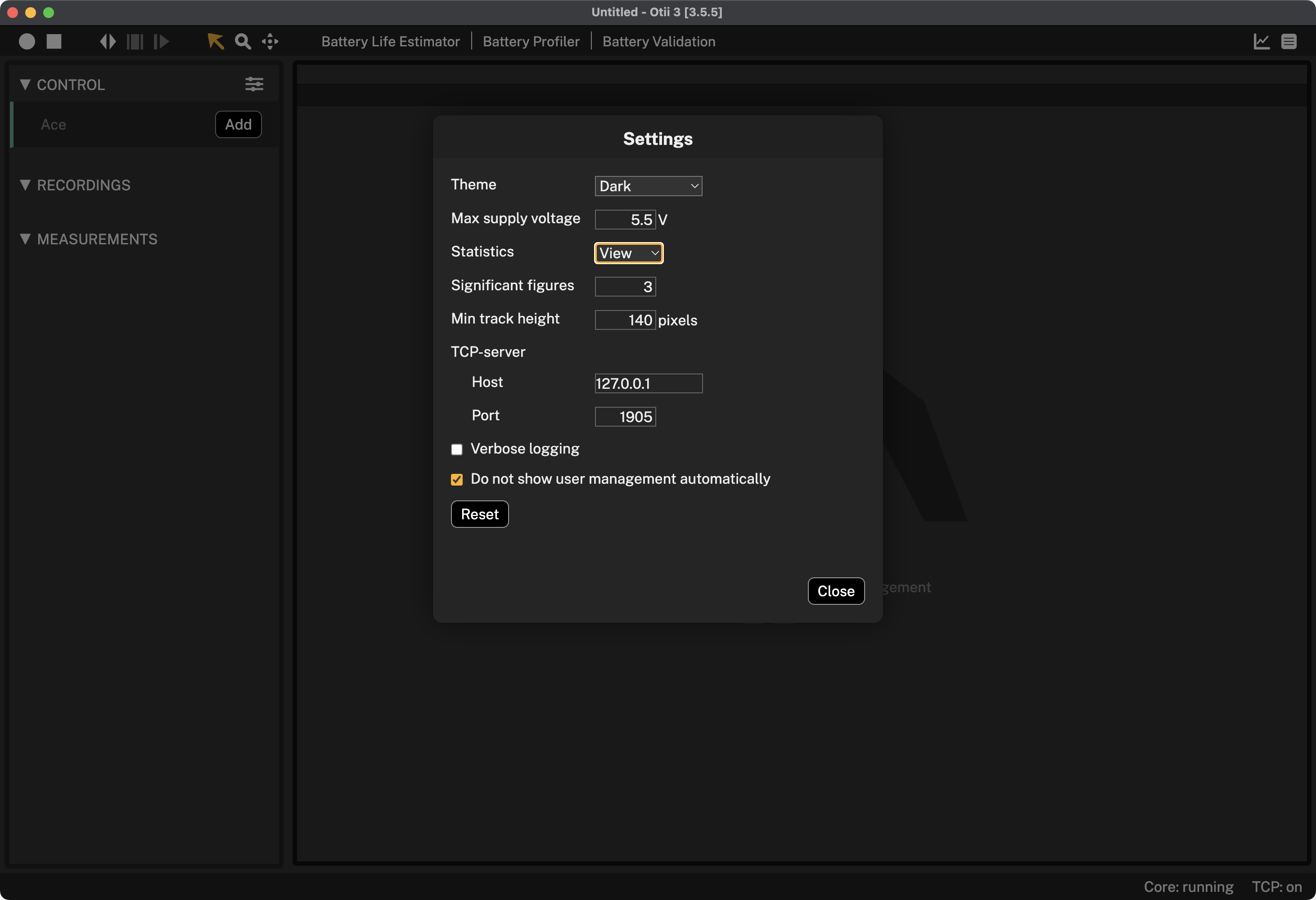
This section allows to configure the following settings:
Max supply voltage: As a safety practice, set the maximum supply voltage based on the device under test (DUT) technical characteristics. The default voltage is 5.5V.
Verbose logging: When enabled, add more information to the otii3.log to improve debugging.
Theme: Customize the interface theme as you like. Choose between Dark, Dark - Blue, Dark - Green, and Dark - Yellow.
Min track height: Minimum height of the window measurement before start scrolling it
Clear selection on left-click: If enabled, the main selection will be cleared on left-click.
Do not show user management automatically: When it is not enabled, and you are logged in and have no reserved licenses, User Management will automatically open when a new project is started.
Statistics
- Energy unit: Choose to see energy in Watt-hours or Joule.
- Charge unit: Choose to see charge in Ampere-hours or Coulomb.
- Show default: Specify the mode in which the statistics will be calculated for the ongoing project when a selection is not made:
- Project: Statistics are calculated for the entire recording.
- View: Statistics are calculated only for the displayed part of the recording.
- Significant figures: Affects the number of figures within the statistics and in the monitor.
- Columns: Select what columns to show in the multiple statistics views.
TCP-Server
- Host: The hostname the TCP-server will listen to
- Port: The TCP-port the TCP-server will listen to
Reset: Resets any settings made and assigns the default settings.